
Applies to: OpsLogix VMware Management Pack (all versions) · SCOM 2019, 2022, 2025
Last updated: October 2026 · Reading time: 1 minute
Goal
Import your VMware Management Pack license key into SCOM, so the management pack becomes fully functional. This works the same for trial and purchased licenses.
Prerequisites
- A valid license key. To get one, contact sales@opslogix.com or fill in the contact form. You can download your key from the OpsLogix customer portal at portal.opslogix.com.
- A key is tied to your SCOM management group and to a version of the management pack. After an upgrade you may need a new key.
- Access to the Administration workspace in the SCOM Operations Console.
Steps
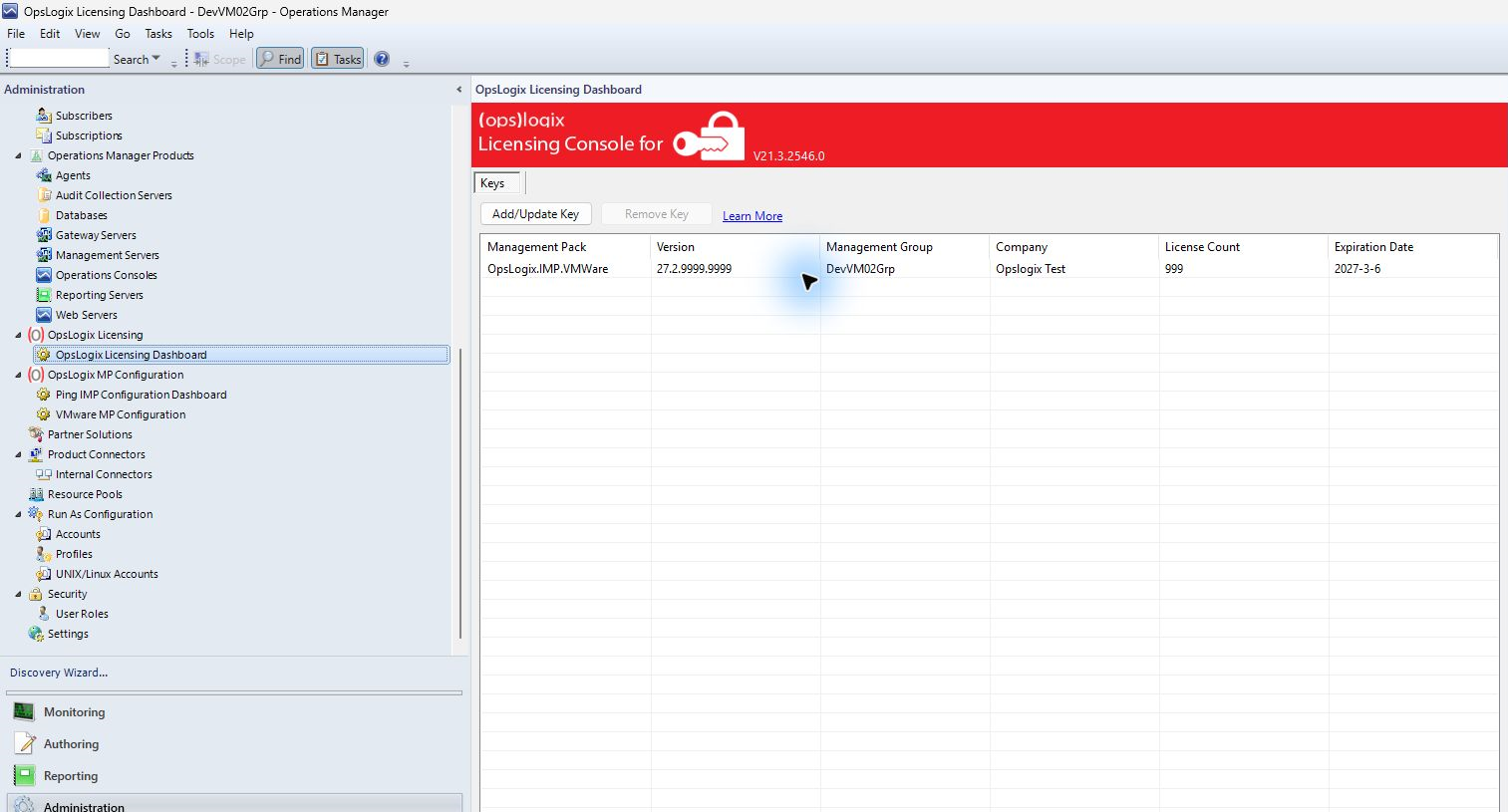
- In the SCOM Operations Console, go to Administration > OpsLogix Licensing > OpsLogix Licensing Dashboard.
- On the Keys tab, click Add/Update Key.
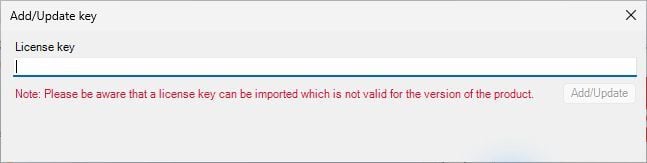
- In the Add/Update key dialog, paste the key into the License key box. Make sure there are no spaces or line breaks before or after the key.
- Click Add/Update.
Verify it worked
The license appears on the Keys tab of the OpsLogix Licensing Dashboard, with the expected License Count (licensed CPU sockets) and Expiration Date. Next, assign the licenses to your ESXi hosts.
If you replaced an existing key: go to Administration > OpsLogix MP Configuration > VMware MP Configuration, open the Assign tab and click Refresh, change nothing, and click Update. This sends the new key to the OpsLogix VMware Collector on every server in the resource pool. Until then the collectors keep using the old key.
See also
- Assign VMware Management Pack licenses to ESXi hosts
- "OpsLogix VMware license is not valid": update your license
- How is the VMware Management Pack licensed?