
Applies to: OpsLogix Capacity trending reports 1.0.13 and later · SCOM 2019, 2022, 2025
Last updated: October 2026 · Reading time: 6 minutes
The Capacity trending reports consist of two management packs. OpsLogix IMP - Capacity trending reports contains the reports and installs the forecasting code in the SCOM data warehouse. OpsLogix IMP - Capacity trending reports License contains your licence key. This article describes what you need and how to install both.
Requirements
- SCOM 2019, 2022 or 2025 with the Reporting feature installed, so the console has a Reporting workspace.
- The data warehouse on SQL Server 2017 or later, with CLR integration enabled. The forecasts run as a .NET assembly inside the data warehouse database.
- The sysadmin role on that SQL Server instance for the one-time SQL steps below.
- On SQL Server Reporting Services 2019 or later: the SCOM resource extensions allowed for upload (step 2).
- The licence management pack for your management group, from the OpsLogix customer portal.
1. Prepare SQL Server
Run this on the SQL Server instance of the data warehouse. It takes effect immediately.
EXEC sp_configure 'clr enabled', 1;
RECONFIGURE;
SQL Server 2017 and later also have clr strict security switched on, which blocks the assembly until you trust it. Switch it off for the duration of the installation; you switch it back on in step 5.
EXEC sp_configure 'show advanced options', 1;
RECONFIGURE;
EXEC sp_configure 'clr strict security', 0;
RECONFIGURE;
2. Prepare Reporting Services (2019 and later)
Add *.CustomConfiguration, *.Report, *.Groups to the server property AllowedResourceExtensionsForUpload, as described in Capacity reports are missing from the SCOM console after import. Without it, SCOM cannot upload the reports.
3. Import the management packs
- In the SCOM console, go to Administration > Management Packs and choose Import Management Packs.
- Choose Add > Add from disk, and select both the reports pack (OpsLogix.IMP.Capacity) and the licence pack.
- Click Install.
The order does not matter from version 1.0.4.1 on.
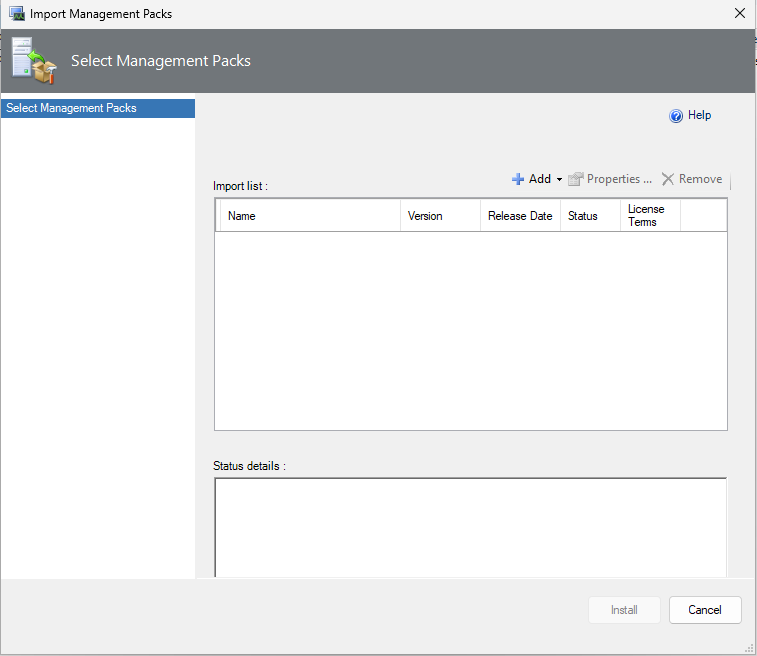
The Import Management Packs wizard. Use Add > Add from disk to select both packs, then Install.
4. Wait for the deployment
After the import, the management server deploys two things. This usually takes a few minutes:
- Into the data warehouse database:
- the assembly OpsLogix.IMP.Capacity.SQL.Module, with the SAFE permission set;
- the functions GetLRPercentage, GetLRAbsolute and OpsLogixCapacityReports_Split;
- the tables OpsLogixCapacityReports_License, OpsLogixCapacityReports_Images and OpsLogixCapacityReports_Profile;
- the OpsLogixCapacityReports_* stored procedures, with EXECUTE granted to the OpsMgrReader role.
- Into Reporting Services: the nine reports, in the folder /OpsLogix.IMP.Capacity.
Errors show as event 31565 (data warehouse) or 31567 (Reporting Services) in the Operations Manager event log of the management servers.
5. Trust the assembly and restore strict security
When the assembly exists, add it to the trusted assemblies and switch clr strict security back on. Follow steps 4 and 5 in Capacity reports show rsErrorExecutingCommand or "Forecast failed".
6. Check the installation
Run this in the data warehouse database (default name OperationsManagerDW):
SELECT name, permission_set_desc FROM sys.assemblies
WHERE name = 'OpsLogix.IMP.Capacity.SQL.Module';      -- 1 row, SAFE_ACCESS

SELECT COUNT(*) AS Procedures FROM sys.procedures
WHERE name LIKE 'OpsLogixCapacityReports[_]%';       -- 14 or more

SELECT MPName, LEN(LicenseKey) AS KeyLength
FROM dbo.OpsLogixCapacityReports_License;          -- 1 row per licence key
Then open the Reporting workspace in the console. The folder OpsLogix IMP - Capacity trending reports should list nine reports. Run Capacity overview - Percentage value with the Logical Disk Free Space (%) rule: you should see a row per disk. If the report shows "No License Found", see Capacity reports show "No License Found".