
Applies to: OpsLogix VMware Management Pack (all versions) · SCOM 2019, 2022, 2025
Last updated: October 2026 · Reading time: 2 minutes
Goal
Choose which SCOM resource pool, and so which management servers, runs the monitoring workload for a vCenter or ESXi connection.
Prerequisites
- A working knowledge of SCOM resource pools. See Microsoft's resource pool design guidance.
- The management servers you want to use are members of the resource pool.
Which resource pool to use
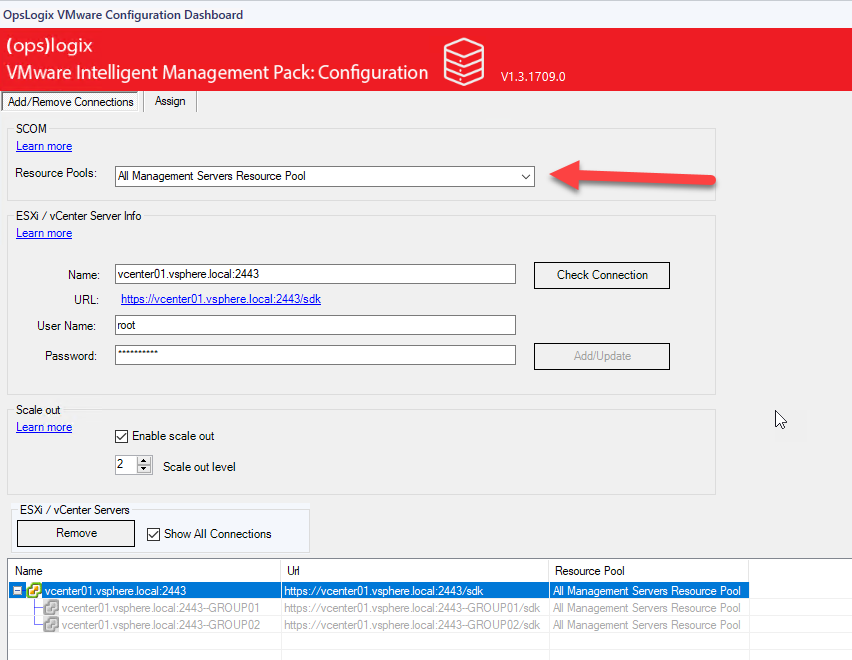
By default, the Resource Pools list in the VMware Configuration Dashboard is set to All Management Servers Resource Pool. We don't recommend this, because the VMware workload can then run on any management server.
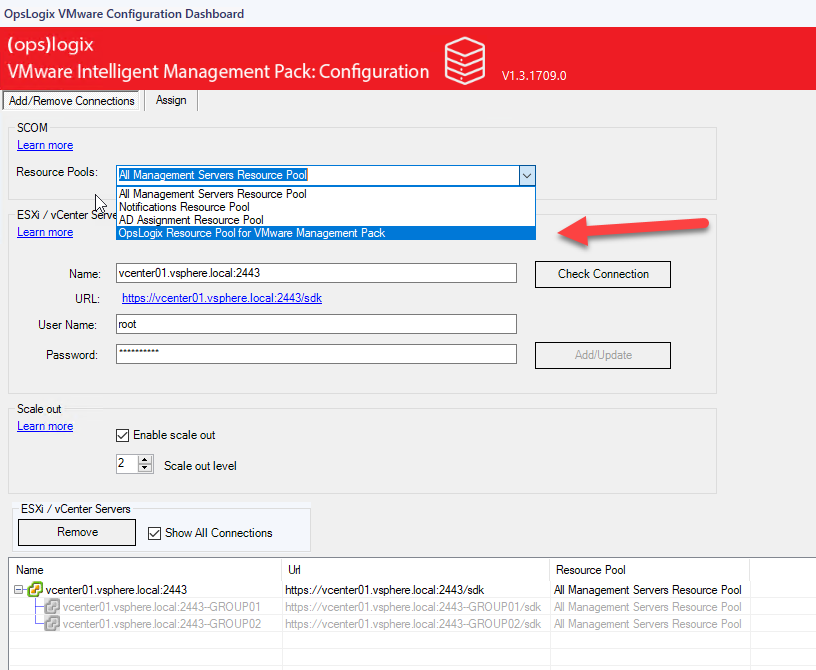
When you import the VMware Management Pack, it creates a resource pool called OpsLogix Resource Pool for VMware Management Pack. Use this pool for the VMware workload, and choose which management servers are in it. You can also select any other resource pool in SCOM.
Steps
- Open the VMware Configuration Dashboard and select the connection under ESXi / vCenter Server Info.
- In the Resource Pools list, select the resource pool you want to use, for example OpsLogix Resource Pool for VMware Management Pack.
- Click Check Connection. If the connection succeeds, click Add/Update.
Verify it worked
Select the connection again in the dashboard and check that the Resource Pools list shows the pool you chose.