
Applies to: OpsLogix VMware Management Pack (all versions) · SCOM 2019, 2022, 2025 · vCenter 7.0, 8.0, 9.0
Last updated: October 2026 · Reading time: 2 minutes
Goal
Connect the VMware Management Pack to the vCenter server you want to monitor, or to an individual ESXi host that you don't want to monitor through vCenter. You do this in the ESXi / vCenter Server Info section of the VMware Configuration Dashboard.
Prerequisites
- A vCenter or ESXi monitoring account. See Set up a VMware monitoring account.
- A license key imported, with enough licenses for the hosts you want to monitor.
Steps
- In Name, enter the FQDN of your vCenter server or ESXi host. Port 443 is used by default. If your vCenter SDK service uses a different port, enter it as <FQDN>:<port>.
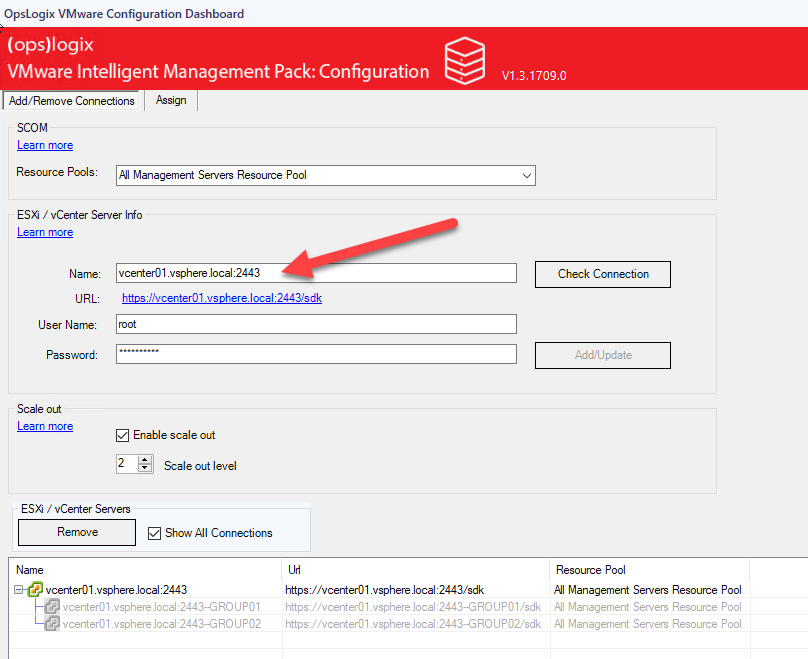
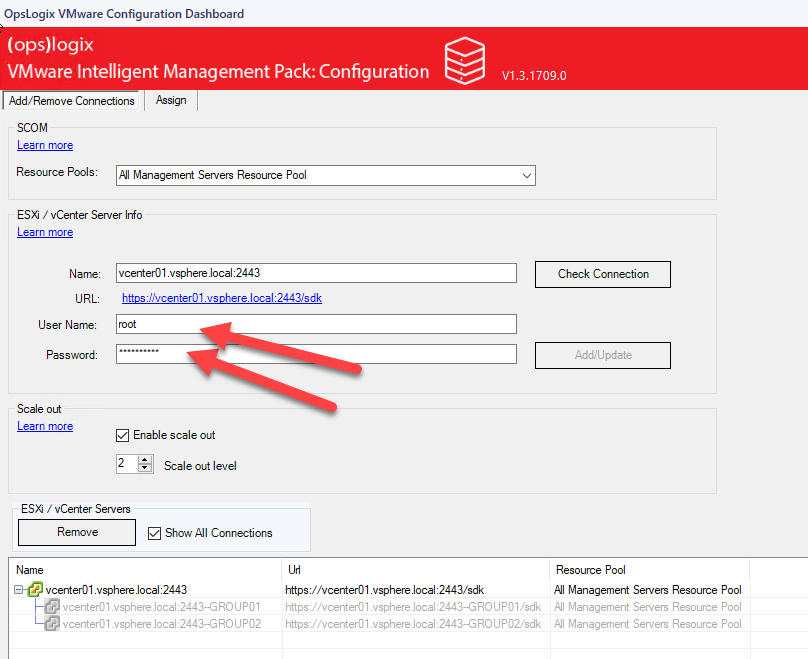
- In User Name and Password, enter the monitoring account.
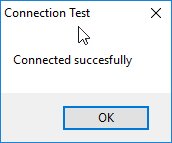
- Click Check Connection. This checks whether the vCenter API can be reached, which can take a while. When it succeeds, you see this message:
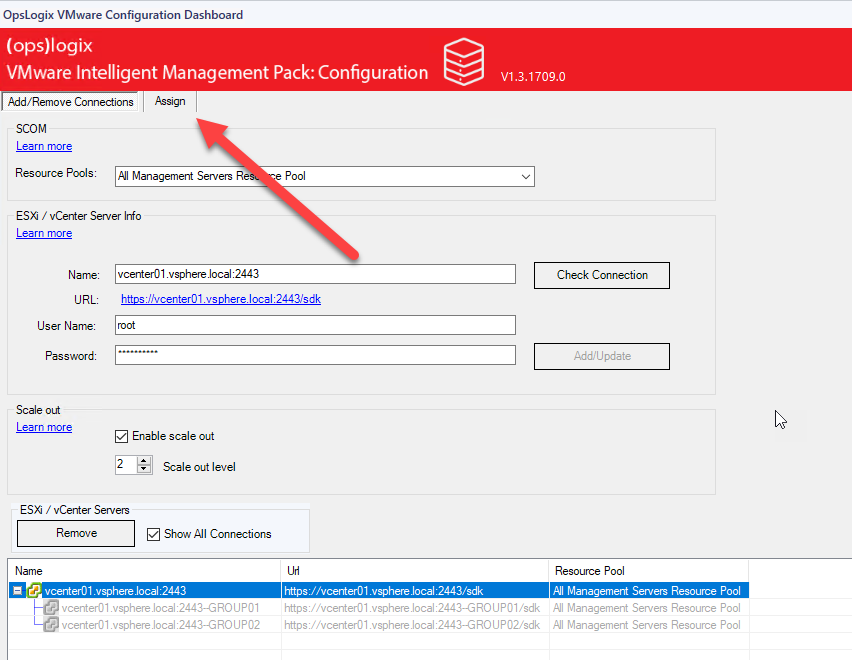
- Open the Assign tab.
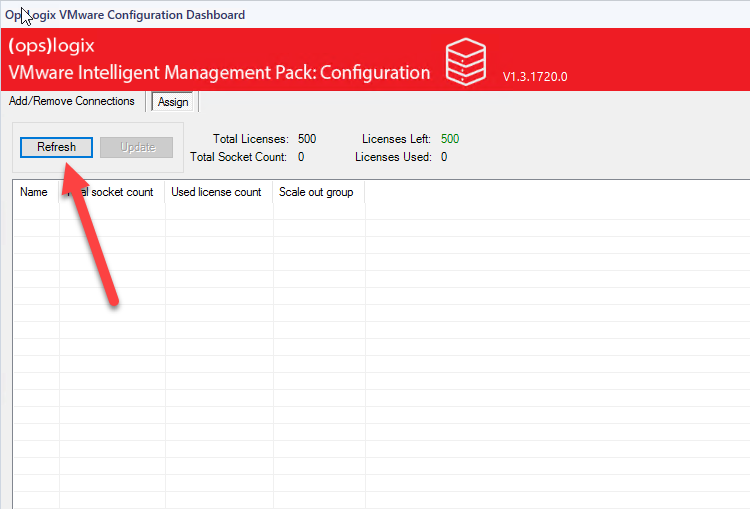
- If no hosts are shown, click Refresh. For a new connection, it can take a while before hosts appear.
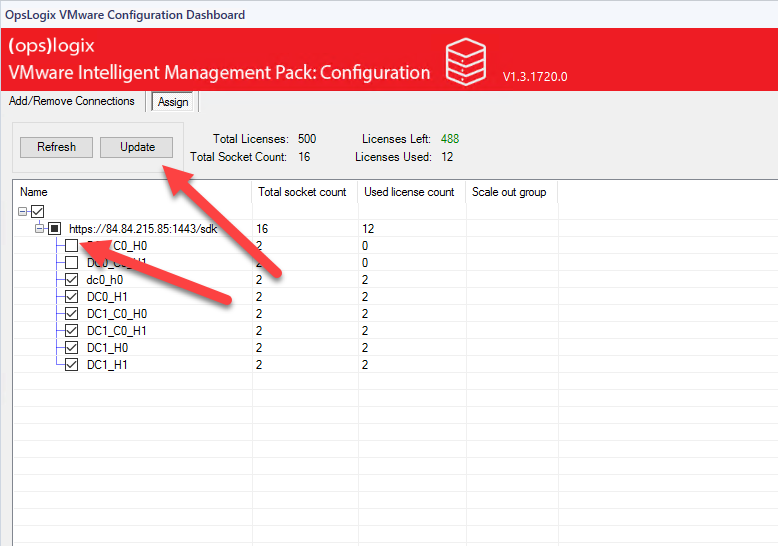
- Select the hosts you want to monitor and click Update. You need enough licenses for the hosts you select.
Verify it worked
The connection is listed in the dashboard and the selected hosts stay selected on the Assign tab. Discovery then starts. See How long does discovery take?