
Applies to: OpsLogix VMware Management Pack (all versions) · SCOM 2019, 2022, 2025 · vCenter 7.0, 8.0, 9.0
Last updated: October 2026 · Reading time: 6 minutes
The OpsLogix VMware Appliance Monitoring management pack monitors the vCenter Server Appliance (VCSA) itself: its health components, CPU and memory use, network traffic and the services that run on it. This article explains what the pack discovers, what it monitors, and what the monitoring account needs.
How it works
The pack reads appliance data from the vCenter REST API. It uses the same connection you added in the configuration dashboard:
- The same host name and port as the vCenter connection.
- The same monitoring account and password.
- The same OpsLogix VMware Collector on the resource pool members.
You don't need to open the appliance management port (5480), and you don't need separate credentials. The pack only reads data. It doesn't change any appliance settings.
The pack reads the following appliance information:
- Version information (product, version, build, release date, install time).
- The health of each appliance component (application management, database storage, load, memory, software packages, storage, swap and overall system).
- The list of appliance services with their startup type, run state and health.
- CPU, memory and network performance counters.
Required permissions
The appliance API needs more than the vCenter Read-only role. Add the monitoring account to this vCenter Single Sign-On group:
- SystemConfiguration.ReadOnly (vSphere 7.0 and later)
- Log in to the vSphere Client as an administrator.
- Go to Administration > Single Sign On > Users and Groups > Groups.
- Open the SystemConfiguration.ReadOnly group.
- Click Add Members and add the monitoring account.
- Wait for the next discovery cycle. The appliance discovery runs every 6 hours.
If the account isn't in the group, the appliance discovery and monitors fail with an access error. See VMware Appliance monitoring fails due to an access error.
What is discovered
| Class | Discovered from | Properties | Interval |
| VMware Appliance | The vCenter connection | Name, Type, Product, Version, Summary, Release date, Build, Install time | 6 hours |
| VMware Appliance Service | The VMware Appliance | Name, Startup type, Description | 6 hours |
Both discoveries are enabled by default.
Appliance health monitors
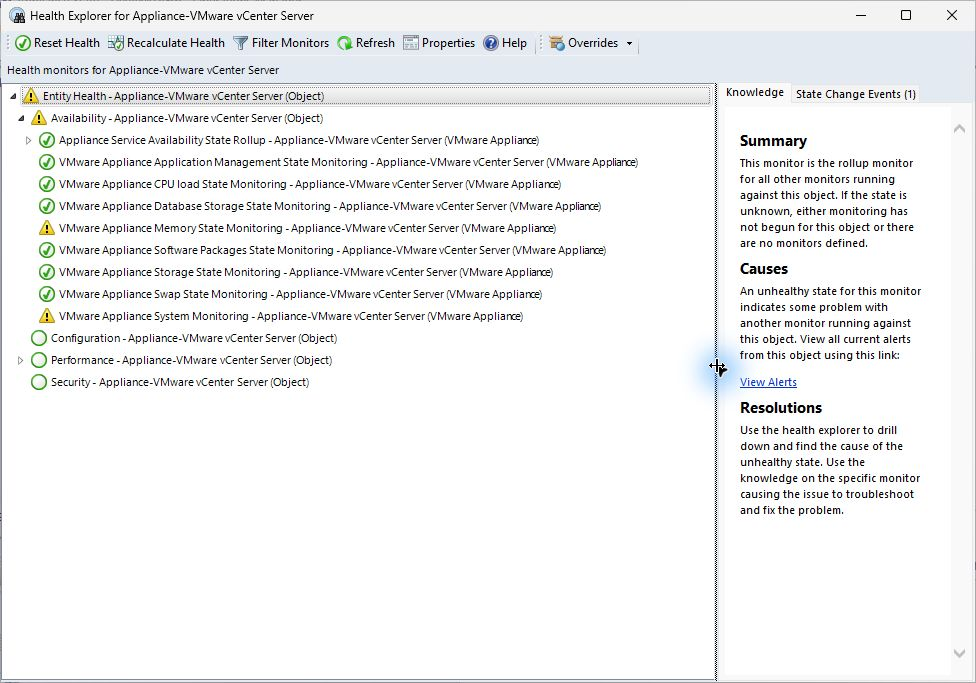
vCenter reports the health of each appliance component as a color. Each component has its own monitor on the VMware Appliance object. All eight monitors are enabled by default and run every 5 minutes.
| Monitor | Component |
| VMware Appliance Application Management State Monitoring | Application management service |
| VMware Appliance Database Storage State Monitoring | Database storage |
| VMware Appliance CPU load State Monitoring | CPU load |
| VMware Appliance Memory State Monitoring | Memory |
| VMware Appliance Software Packages State Monitoring | Software packages |
| VMware Appliance Storage State Monitoring | Storage |
| VMware Appliance Swap State Monitoring | Swap |
| VMware Appliance System Monitoring | Overall system health |
The monitors map the vCenter color to a SCOM health state like this:
| vCenter value | SCOM state |
| GREEN | Healthy |
| RED | Critical |
| YELLOW, ORANGE, GRAY or any other value | Warning |
Each monitor raises an alert on Warning and Critical. The alert severity matches the health state, and the alert closes on its own when the component is GREEN again. The alert shows the current value and the time vCenter last checked the health.
You can change the mapping with the HealthyValue and CriticalValue overrides. Both take a regular expression.
Note: before version 26.10.4540.0, these eight monitors didn't receive data because of a product bug, so they always showed Healthy. Upgrade to 26.10.4540.0 or later to see the real appliance health. After the upgrade, a component that vCenter reports as yellow or orange shows Warning, and you may see new alerts for problems that already existed.
CPU and memory monitors
| Monitor | Healthy | Warning | Critical |
| VMware Appliance CPU Usage Percent | 90% or lower | Above 90% and below 95% | 95% or higher |
| VMware Appliance Memory Usage Percent | 80% or lower | Above 80% and below 90% | 90% or higher |
Both monitors are enabled by default, run every 5 minutes and use the 5-minute average from the appliance. They raise an alert on Warning and Critical and close it automatically.
To change the thresholds, override ThresholdLow (the Warning threshold) and ThresholdHigh (the Critical threshold). To react only to a sustained peak, raise NumSamples (default 1).
Service monitors
Each appliance service has two monitors. Both are enabled by default and run every 5 minutes.
VMware Appliance Service Health State Monitoring checks the health that vCenter reports for the service.
| Service health | SCOM state |
| HEALTHY, or NONE (the service isn't running, so it has no health) | Healthy |
| DEGRADED | Critical |
| HEALTHY_WITH_WARNINGS or any other value | Warning |
The alert includes the service name, health, run state, the health messages from vCenter and the service description.
VMware Appliance Service Run State Monitoring combines the run state with the startup type. A stopped service is only a problem if it should start automatically.
| Run state and startup type | SCOM state |
| Started (any startup type) | Healthy |
| Stopped, startup type Manual or Disabled | Healthy |
| Stopped, startup type Automatic | Critical |
| Any other combination, for example Starting or Stopping | Warning |
Both service monitors raise an alert on Warning and Critical and close it automatically. The Appliance Service Availability State Rollup monitor rolls the service health up to the VMware Appliance object.
If one service is stopped on purpose, disable the Run State monitor for that service with an override. Don't disable it for the whole class.
Performance collection rules
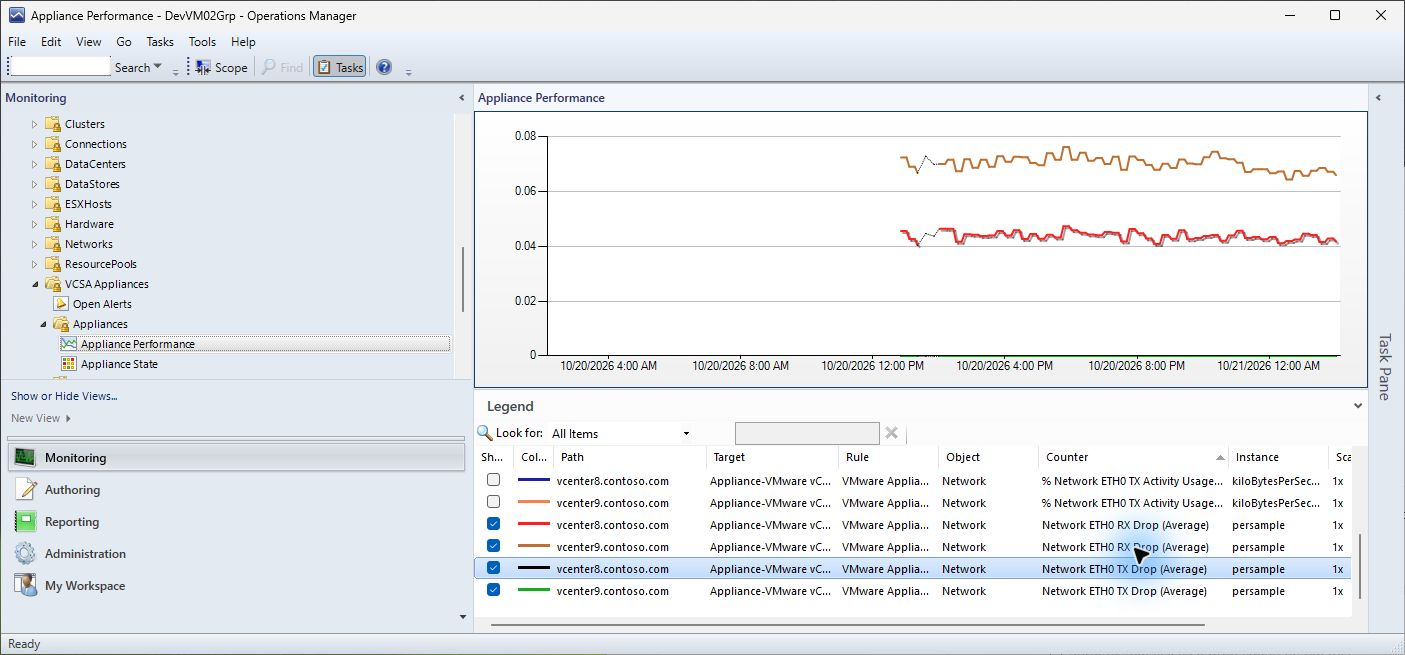
These rules are enabled by default and collect data every 5 minutes. You see the data in the Appliance Performance view.
| Rule | Counter |
| VMware Appliance CPU Usage Performance Collection | CPU \ % CPU Usage (Average) |
| VMware Appliance Memory Usage Performance Collection | Memory \ % Memory Usage (Average) |
| VMware Appliance Network ETH0 Rx Usage Performance Collection | Network \ % Network ETH0 RX Activity Usage (Average), in kilobytes per second |
| VMware Appliance Network ETH0 Tx Usage Performance Collection | Network \ % Network ETH0 TX Activity Usage (Average), in kilobytes per second |
| VMware Appliance Network ETH0 RX Drop per sample Performance Collection | Network \ Network ETH0 RX Drop (Average), received packets dropped per sample |
| VMware Appliance Network ETH0 TX Drop per sample Performance Collection | Network \ Network ETH0 TX Drop (Average), transmitted packets dropped per sample |
The RX and TX drop counters are available from version 26.10.4540.0. Earlier versions had one rule, "VMware Appliance Network ETH0 Drop per sample Performance Collection", with the counter % Network ETH0 Drop (Average). Because of a product bug, that counter contained the receive activity in kilobytes per second, not dropped packets. Its history is kept but doesn't show drops.
Where to find it in the console
In the Monitoring workspace, open the VMware folder and then VCSA Appliances:
- Appliances > Appliance State and Appliance Performance
- Services > Service State
- Open Alerts
Things to know
- Appliance monitoring works for vCenter Server Appliance connections. It doesn't apply to an ESXi host that you added as a direct connection.
- To change a threshold, use an override in Authoring > Management Pack Objects > Monitors. Save overrides in your own unsealed management pack.
- If no appliance objects are discovered, or the appliance monitors get no data, check the SSO group membership first.