
Applies to: OpsLogix VMware Management Pack (all versions) · SCOM 2019, 2022, 2025 · vCenter 7.0, 8.0, 9.0
Last updated: October 2026 · Reading time: 5 minutes
The VMware Management Pack includes a set of monitors that track the state of each ESXi host as vCenter reports it. This article lists these monitors, their health states and how to tune them.
How the state monitors work
- All monitors in this article target the VMware ESX Server class.
- They are all enabled by default and run every 5 minutes (300 seconds).
- They all roll up to the Availability health of the host.
- They raise an alert on Warning and Critical. The alert severity matches the health state, and the alert closes automatically when the host is Healthy again.
- Each monitor compares a host property with two regular expressions. A value that matches HealthyValue is Healthy. A value that matches CriticalValue is Critical. Any other value is Warning.
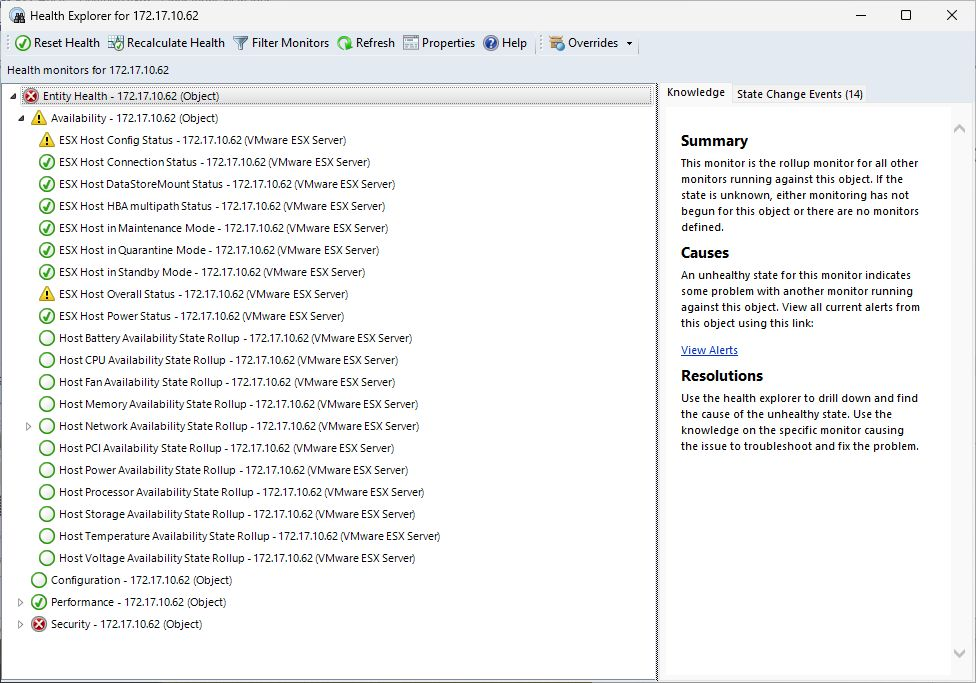
You find the hosts in the Monitoring workspace, in the VMware folder under ESXHosts > ESX Hosts. Open Health Explorer on a host to see each monitor.
Maintenance, quarantine and standby mode
| Monitor | Healthy | Critical | Alert text |
| ESX Host in Maintenance Mode | The host is not in maintenance mode | The host is in maintenance mode | The Maintenance Mode for ESX Host {host} has changed to {true/false} |
| ESX Host in Quarantine Mode | The host is not in quarantine mode | The host is in quarantine mode | The Quarantine Mode for ESX Host {host} has changed to {true/false} |
| ESX Host in Standby Mode | The host is not in standby, or is leaving standby | The host is in standby, or is entering standby | The Standby Mode for ESX Host {host} has changed to {true/false} |
Standby mode is usually set by VMware Distributed Power Management (DPM), which can only put hosts in a cluster into standby. If DPM puts hosts into standby on purpose, disable the ESX Host in Standby Mode monitor for those hosts with an override. The ESX Host Power Status monitor also shows a host in standby, as the power state standBy (Warning).
Note: before version 26.10.4540.0, the Standby Mode monitor could never detect standby because of a product bug, so it always showed Healthy.
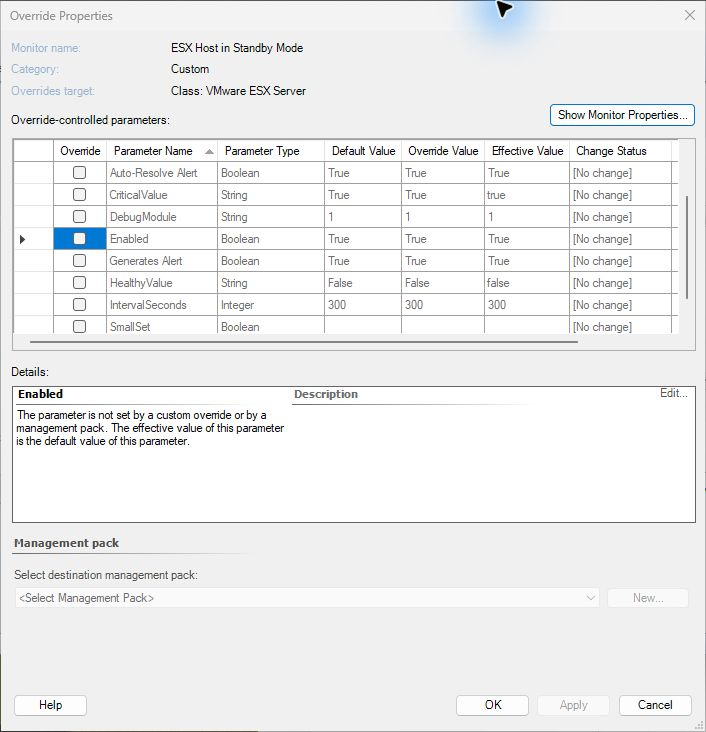
Planned maintenance: by default, a host in vSphere maintenance mode turns Critical and raises an alert. If you put hosts in maintenance mode often, you can:
- Put the ESX host object in SCOM maintenance mode for the same period. SCOM then doesn't raise alerts for that host.
- Or disable the ESX Host in Maintenance Mode monitor with an override, for all hosts or for a group.
Connection, power and configuration status
| Monitor | Healthy | Warning | Critical |
| ESX Host Connection Status | connected | Any other value, for example notResponding | disconnected |
| ESX Host Power Status | poweredOn | Any other value, for example standBy or unknown | poweredOff |
| ESX Host Config Status | green | Any other value, for example yellow or gray | red |
- Connection Status shows the connection between vCenter and the host. If vCenter loses the host, this monitor changes state.
- Power Status shows the host power state as vCenter reports it.
- Config Status shows the configuration status of the host. The alert lists the configuration issues that vCenter reports, with the time each issue was created.
Datastore mount status
The ESX Host DataStoreMount Status monitor checks every datastore that is attached to the host.
| Condition | State |
| All attached datastores are mounted on this host | Healthy |
| One or more attached datastores are not mounted on this host | Critical |
The alert names the datastores that are not mounted. In version 26.6.4531.0 and later, the alert lists only the unmounted datastores. Earlier versions list every datastore on the host.
HBA multipath status
The ESX Host HBA multipath Status monitor checks the storage paths from the host's storage adapters (HBAs) to its LUNs. When a path is down, the datastores on that storage may not work correctly.
| Paths of the host | State |
| No dead or disabled paths (all paths are active or standby) | Healthy |
| One or more dead paths | Critical |
| Disabled paths, but no dead paths | Warning |
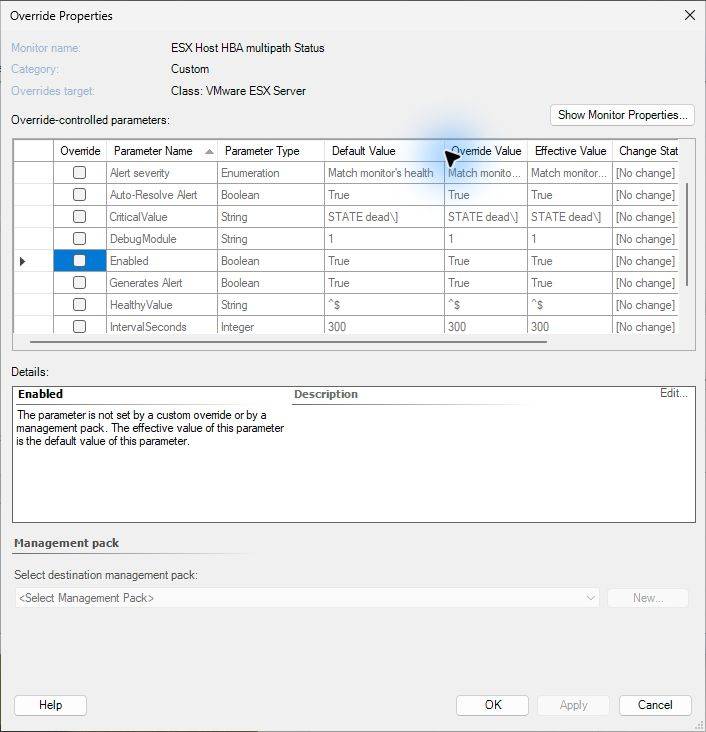
The alert lists the dead and disabled paths, for example [vmhba2:C0:T0:L1 STATE dead]. A path that an administrator disabled on purpose keeps the host in Warning. To accept disabled paths, override HealthyValue to ^(\[[^\]]* STATE disabled\],?)*$, which counts a host with only disabled paths as Healthy.
Note: before version 26.10.4540.0, this monitor didn't receive data because of a product bug, so it always showed Healthy. From 26.10.4540.0, the HealthyValue and CriticalValue of this monitor are compared with the list of dead and disabled paths instead of all paths. If you overrode them for an earlier version, review those overrides.
Tune a monitor
Each monitor in this article has these override parameters:
| Parameter | Meaning |
| HealthyValue | Regular expression for the Healthy value. |
| CriticalValue | Regular expression for the Critical value. |
| IntervalSeconds | How often the monitor runs. Default 300. |
| Enabled | Set to False to turn the monitor off. |
Example: to make a host that is not responding Critical instead of Warning, override CriticalValue on ESX Host Connection Status to ^(disconnected|notResponding)$.
- In the Operations console, go to Authoring > Management Pack Objects > Monitors.
- Search for the monitor name, for example ESX Host in Maintenance Mode.
- Right-click the monitor and select Overrides > Override the Monitor.
- Select For all objects of class: VMware ESX Server, or For a group to change only some hosts.
- Select Override next to the parameter and enter the new value.
- Save the override in an unsealed management pack and click OK.