Applies to: Opslogix Oracle Management Pack (all versions)
Last updated: October 2026 · Latest version: 26.4.4517.0
See also: Upgrade guide for 26.4.4517.0 · Version support · Release notes
1. Prepare the database
If the monitoring account connects as SYS or with the SYSDG role, no preparation is needed. For any other monitoring account, connect as SYSDBA and create this view, then grant the monitoring account access:
create view alertlog as select * from sys.x$dbgalertext;
grant select on sys.alertlog to <oracle monitoring user>;
Replace <oracle monitoring user> with the account you use to monitor the Oracle instances. See also KB: How to create the monitoring account for the Oracle monitoring.
2. Enable the rule
- In the Operations Manager console, go to Authoring > Rules and search for the rule "Alert Log Messages Monitoring".
- Create an override that sets Enabled to True, for all Oracle instances or only for the instances you choose. Save the override in an override management pack, for example "OpsLogix.IMP.Oracle.Overrides".
The rule checks the alert log every 120 seconds. For every matching alert log record it creates a SCOM alert; the ORA number is shown in the alert name.
3. Change which messages create an alert (optional)
By default the rule reports messages that contain "ORA-". The filter is a SQL "where" condition in the override parameter QueryForInLog. The default value is:
message_text like '%ORA-%'
For example, to also report messages that start with "immediate", override QueryForInLog with:
( (message_text like '%ORA-%') OR (message_text like 'immediate%') )
4. Test
Connect with sqlplus to an instance where the rule is enabled, log on as SYSDBA and run:
exec dbms_system.ksdwrt(2, 'ORA-00000 Test Event');
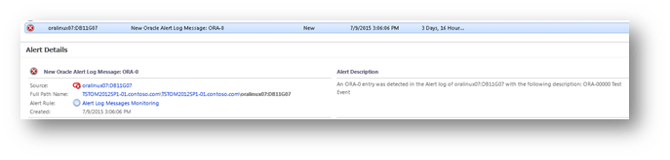
Within a few minutes an alert should appear in the SCOM console: